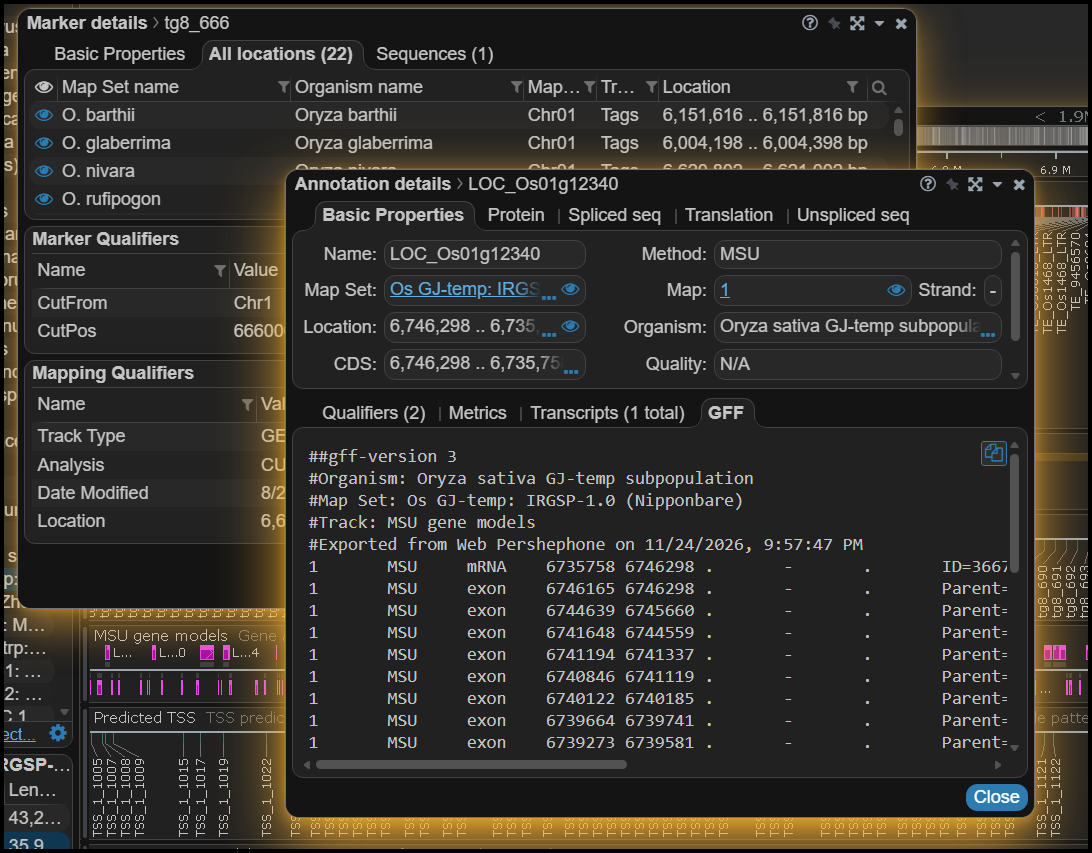



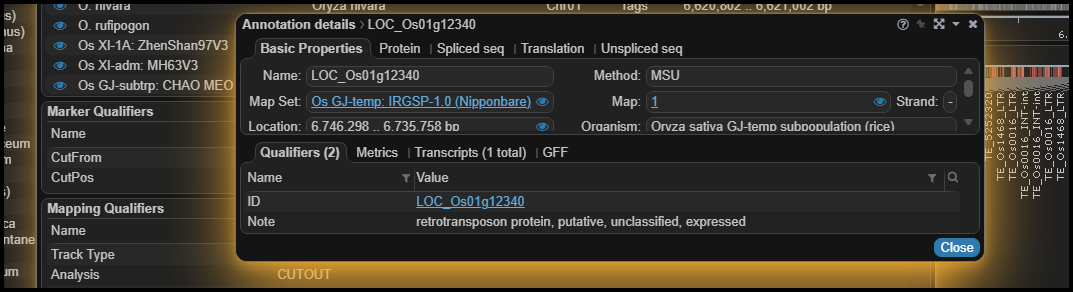
UI Update: Customize Color Scheme
For those who would like to modify the colors of the new Persephone UI, we provide a Theme editor. You can activate it from the Settings form. The corresponding checkbox is found under the Other tab.
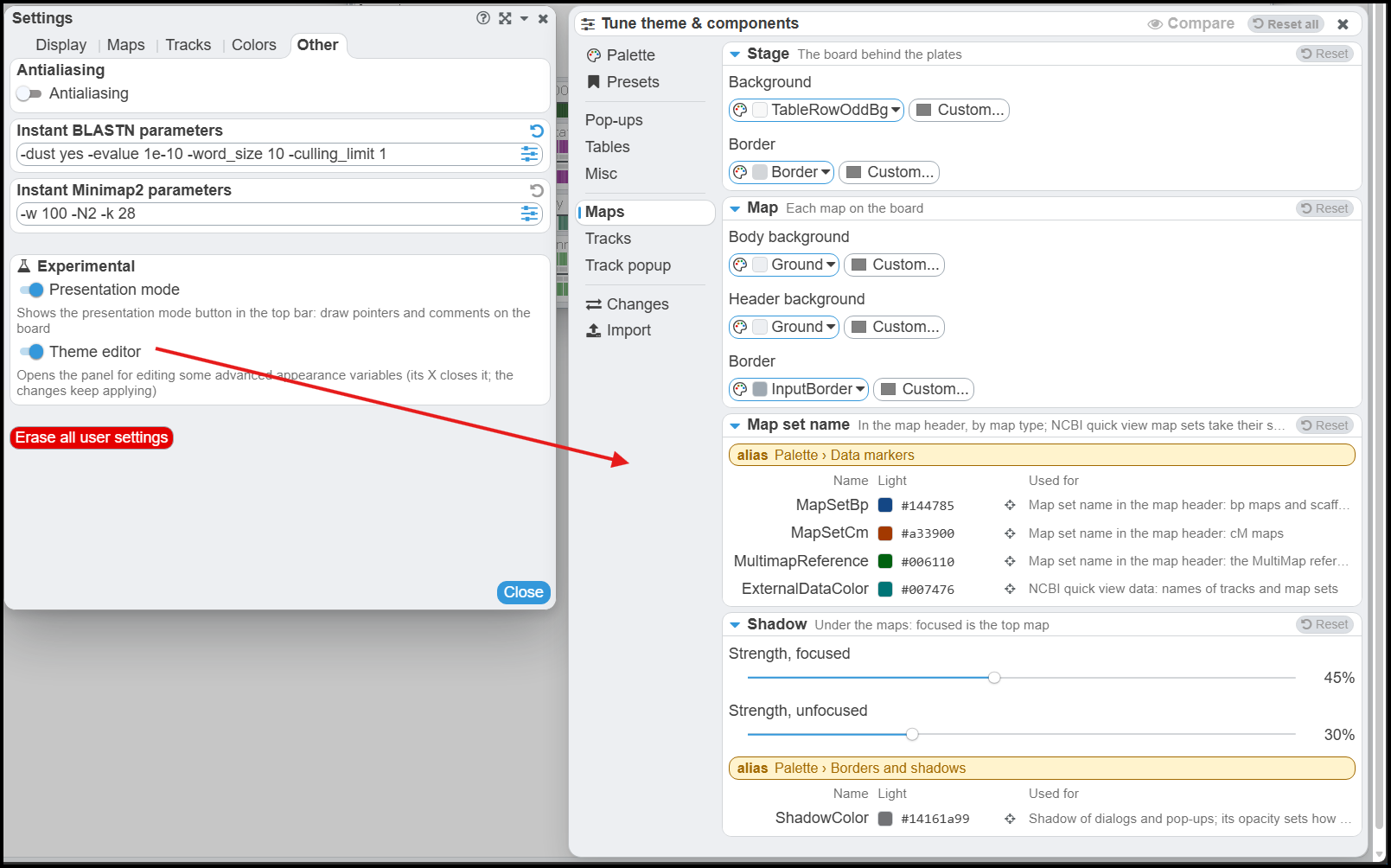
Experiment with the available settings to see how they affect the user interface. For consistency, most UI element colors come from a fixed set of theme colors, though you can override them with fully custom values.
For example, there is no dedicated setting for dialog backgrounds. Instead, dialogs use the theme color named Ground. As a result, changing this color will also affect other UI elements that rely on the same theme entry.
To fine-tune the theme colors, switch to the Palette tab. To better understand how color mappings work, let’s change the default Ground color to something unusual, such as orange, and observe which interface elements are affected.
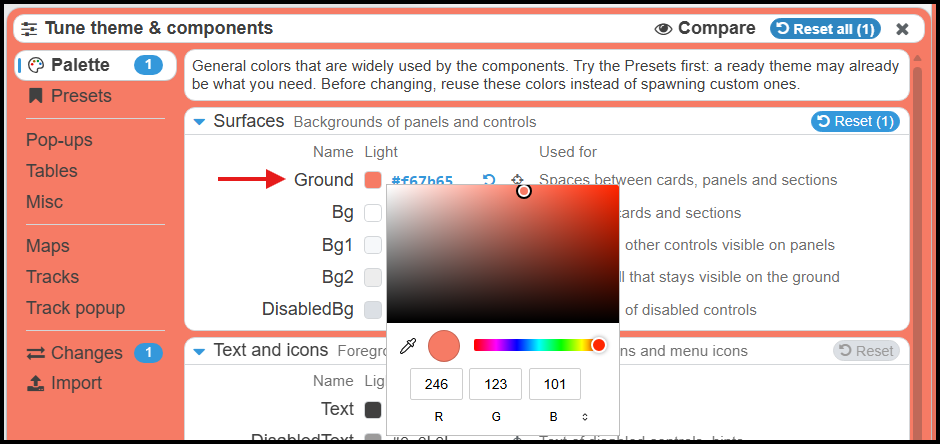
Try the Compare button in the top-right corner. It temporarily reverts your changes, allowing you to quickly switch between the original and modified appearance and easily spot the elements affected by your edits.
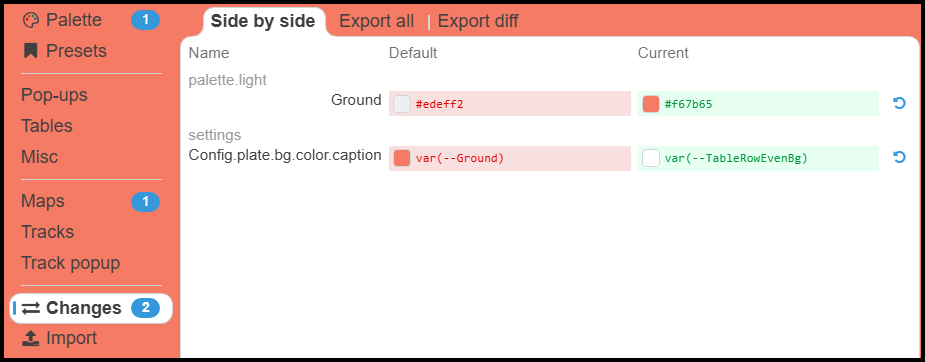
Note that all changes are recorded and, if needed, can be reset. The “Changes” tab will collect all customizations and will even let you compare the values:
As before, switch to dark mode via the Settings/Display tab. By tweaking the shadow colors, we can get an interface like this: