



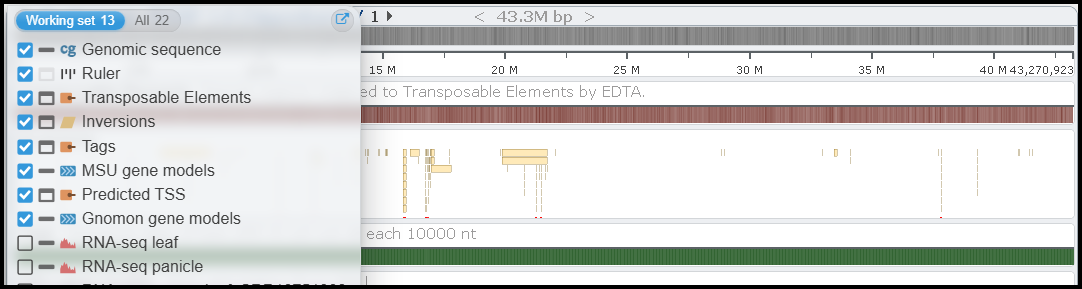
Major UI Upgrade
We redesigned the Persephone user interface, introducing a refreshed color scheme and modernized controls. Our goal was to achieve a more consistent visual experience throughout the application. As you may have noticed, the updated look of standard UI elements, such as buttons and text boxes, now aligns with the new map and track graphics.
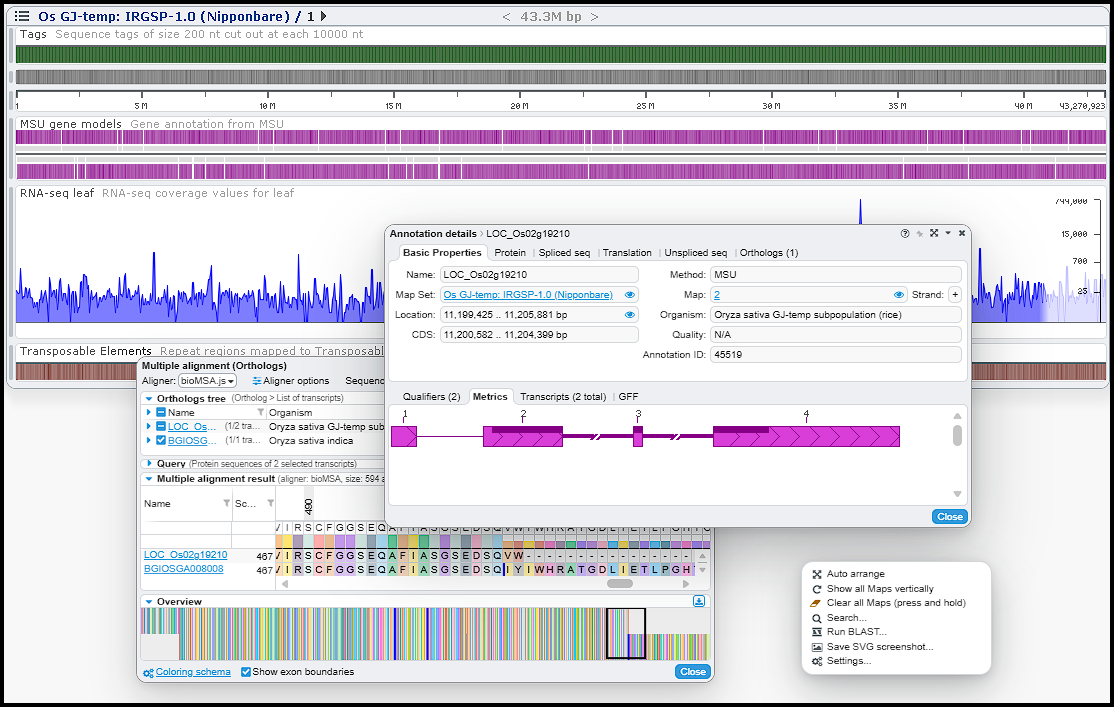
Another significant change is the redesigned track panel — a control for hiding/displaying tracks. We decided to retire the traditional LED-style indicators used to control track visibility for more than a decade. In general, you can hide a track by clicking a button or menu item on the track, but showing a track requires selecting it from a list. We introduced a “Working set” with a flat list mirroring the tracks on the map. If a track was recently hidden, we keep it in the list for some time. The main idea behind the redesign was to provide a simple list of recently used tracks, reflecting their order on the map. For most of the users, this simple view may be all they need to select and reorder tracks.
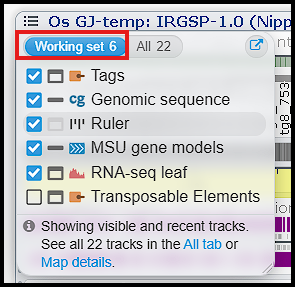
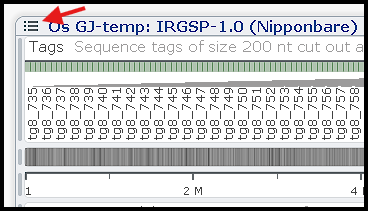
When the panel is not in use, it remains hidden and can be accessed by clicking the menu icon in the upper-left corner of the map plate. By hiding the track visibility checkboxes when the panel is not in use, we aim to create a cleaner view, free from navigation controls that appear only when the mouse cursor is over a map.
Please note that track order on the map or the Working Set tab does not affect track order in the Map properties. This helps in situations when moving a track changes its parent node. For example, an annotation track can be visually moved between two RNA-seq tracks hosted under their own parent node and end up as a child of the RNA-seq parent. The tracks’ logical organization in the Map properties will remain unchanged unless you explicitly move the track within the tree using the Map properties form.
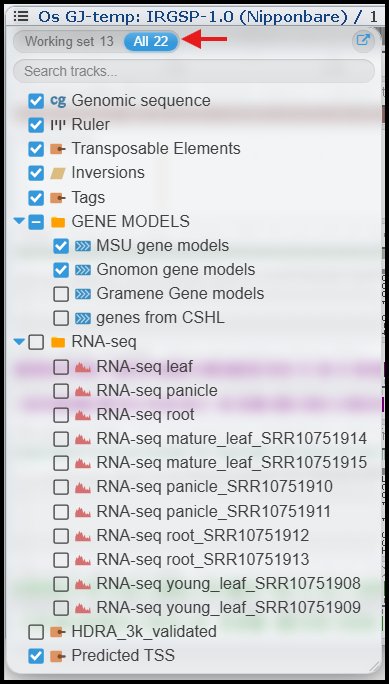
Besides the “Working set”, the new panel has another tab called “All”. Unlike the Working set, which basically repeats a flat list of tracks currently on the map, the “All” tab shows tracks exactly as they are organized in the Map or Map set properties. Now you can see the full track hierarchy tree in a compact view with expandable folders.
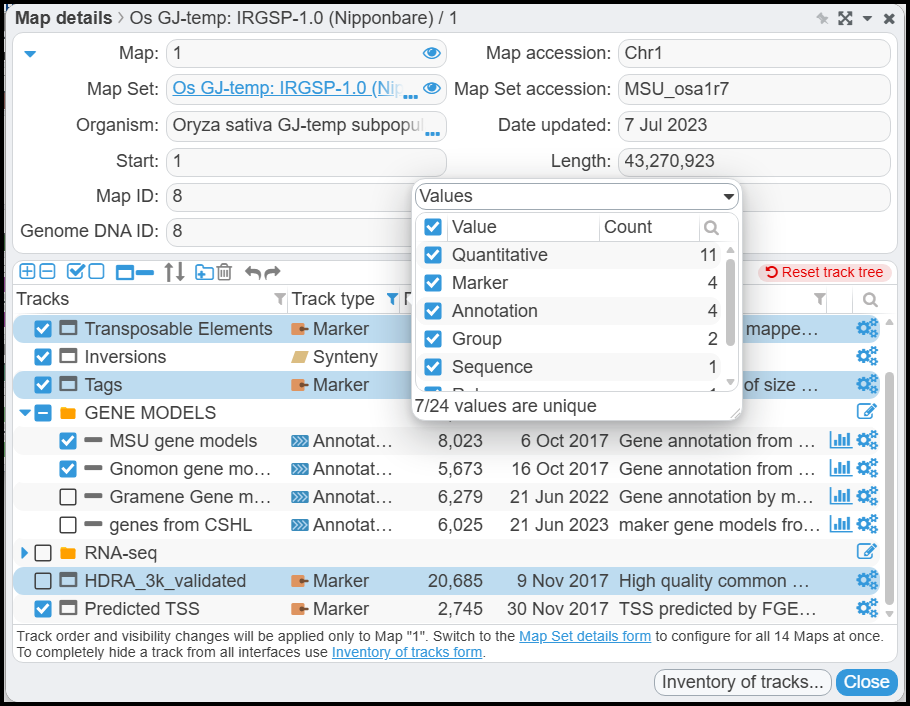
To find a track by type, regroup or rename tracks, filter and show/hide multiple tracks at once, use the Map properties form, which has full Persephone grids functionality and can handle thousands of tracks in a complex structure. Remember that in the Map set properties form you can define default visibility and collapsed state of tracks common for all maps of a genome.
We also cleaned the title bar by automatically hiding the BLASTN, minimap2, and GOTO buttons whenever the mouse pointer is outside the map area. This reduces visual clutter and provides a cleaner interface, making it easier to focus on the data and capture screenshots.


As you probably noticed, the redesign of the track panels is a serious change, and we would like to hear your feedback. Thank you.